Using an Xbox controller to navigate and control your Windows PC offers a seamless way to browse media, launch games, and manage desktop tasks from a distance. Whether you prefer a wired USB connection, Bluetooth, or a dedicated wireless adapter, Windows provides native support that makes hardware pairing quick and reliable. Mastering the setup and configuration process ensures you get fluid desktop navigation alongside optimal gaming performance.
Connecting Your Xbox Controller to Windows
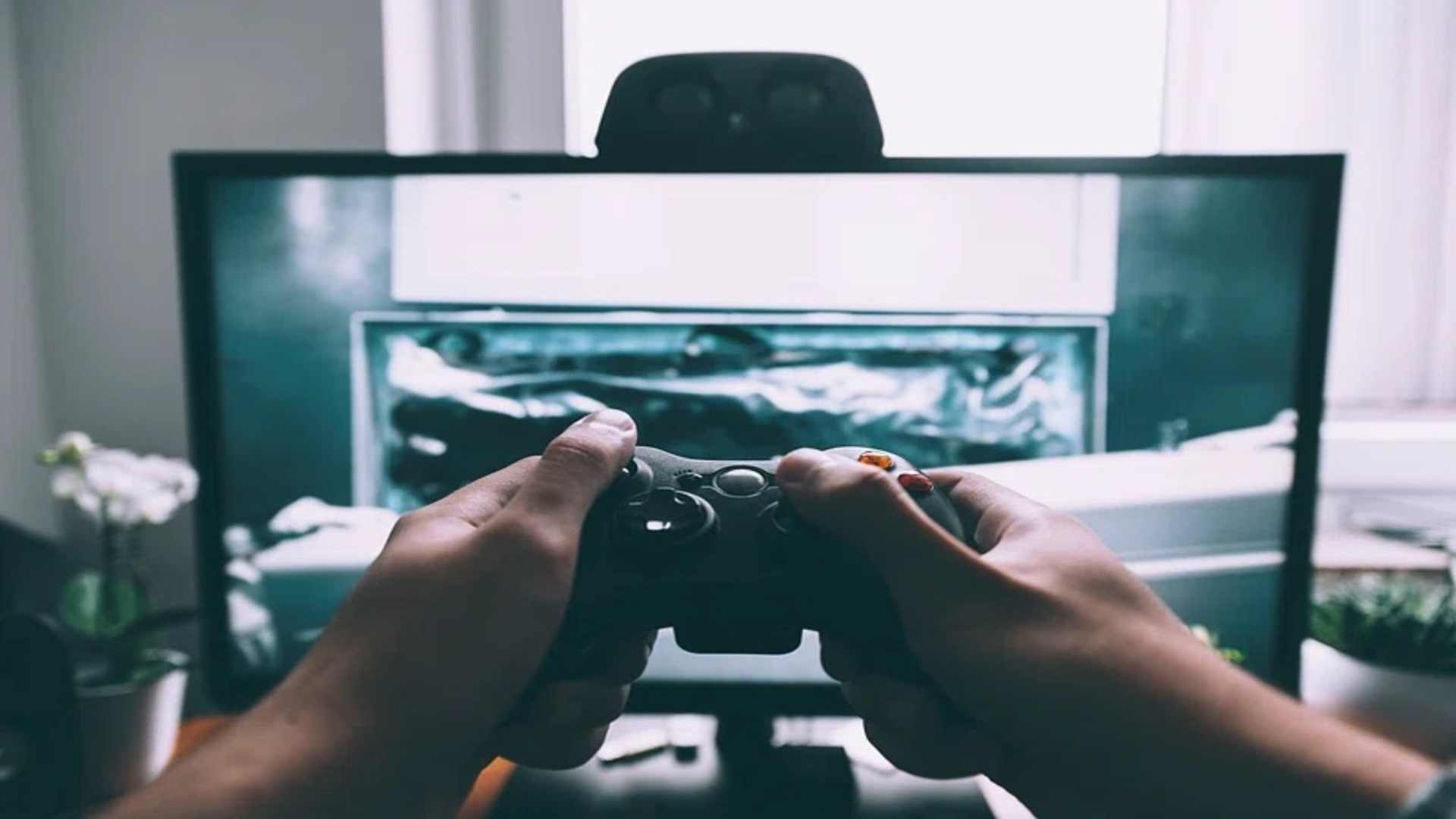
Connecting an Xbox controller to a PC can be accomplished using a USB cable, Bluetooth, or an Xbox Wireless Adapter. Plug-and-play functionality via USB provides the lowest latency and eliminates battery concerns during long sessions. Wireless connectivity offers greater mobility, requiring only a quick pairing process inside the Windows settings menu.
To pair wirelessly via Bluetooth, turn on your controller and press the dedicated sync button until the Xbox logo flashes rapidly. On your computer, open settings, select Add Device, and choose the wireless controller from the discovered list. Once connected, Windows automatically installs the basic driver software required for standard input recognition.
Mapping Desktop Navigation Controls
While Windows natively recognizes the gamepad for games, controlling desktop mouse movements requires specialized software or built-in platform features. Popular applications such as Steam, reWASD, or Controller Companion allow users to map analog sticks to cursor movement and buttons to mouse clicks. Steam Desktop Configuration feature is a free and built-in option that transforms your controller into a full desktop navigation tool.
Through Steam Settings, navigate to the Controller section to customize the Desktop Configuration layout. Assign the right analog stick to mouse movement, the right trigger to left-click, and the left trigger to right-click. This intuitive layout allows you to effortlessly navigate web browsers, file directories, and media apps without touching a physical keyboard.
Customizing Inputs with Advanced Tools
Advanced key mapping software expands your gamepad functionality by allowing custom shortcuts and macro creation. You can bind specific buttons to toggle virtual keyboards, adjust system volume, or switch active application windows. Configuring dead zones for analog sticks prevents unwanted cursor drifting caused by wear over time.
Third-party tools offer deeper customization, such as remapping Xbox Elite paddle buttons to specific key combinations. These software suites allow you to save tailored profiles for distinct tasks, switching automatically between desktop mode and gaming mode. Taking advantage of these custom profiles maximizes your productivity and entertainment setup.
Calibrating and Testing Controller Functionality
To guarantee accurate inputs across both desktop applications and games, testing your configuration periodically is recommended. Windows includes a legacy Game Controllers utility accessible through the Control Panel. Accessing properties within this utility lets you test button presses, verify analog stick range, and calibrate axis alignment.
If you experience unregistered inputs or improper stick centering, running the calibration wizard resets the baseline alignment settings. Keeping your controller firmware updated through the Xbox Accessories app on Windows also resolves lingering connectivity issues. Maintaining updated software and calibrated hardware ensures your desktop setup remains responsive and dependable.